CUB Net Banking is an online banking system provided by City Union Bank to customers. You are not required to visit the bank branch physically. It is easy to avail banking services anytime, from anywhere, 24/7, using CUB Net Banking on a computer, smartphone, or tablet.
Services Offered by City Union Net Banking
The CUB net banking offers various services, including:
- CUB net banking allows you to book tickets for planes, trains, and buses.
- You can check your balance, open or close fixed deposits and other deposits.
- It helps you to open a Demat Account with NSDL in simple steps.
- Customers can register for ASBA for IPOs, FPOs, etc.
- CUB net banking makes it easier to invest in sovereign gold bonds.
- You can pay bills for mobile, DTH, and internet retail transactions, etc.
- You can pay tax, file income tax, and view Form 26AS.
- City Union Net Banking cheque book request, stop payment, and revocation of stop payments.
- CUB net banking helps you to get account statements through email.
- You can set the limit for credit card expenses. It allows you to enable and disable ATM, PoS, and e-commerce transactions.
Benefits of City Union Bank Net Banking
CUB net banking offers various benefits, such as:
- 24/7 Access: You can use CUB net banking 24/7. There is no limitation on working hours or holidays.
- No Branch Visits: You are not required to visit the branch physically and stand in queues for work. It saves your time and energy.
- Secure Transaction: CUB net banking uses 2-factor authentication and secure login. It protects transactions and financial details.
- Other Benefits: You also get various banking services, including money transfer, payments of essential bills, and investments.
CUB Net Banking Registration Process
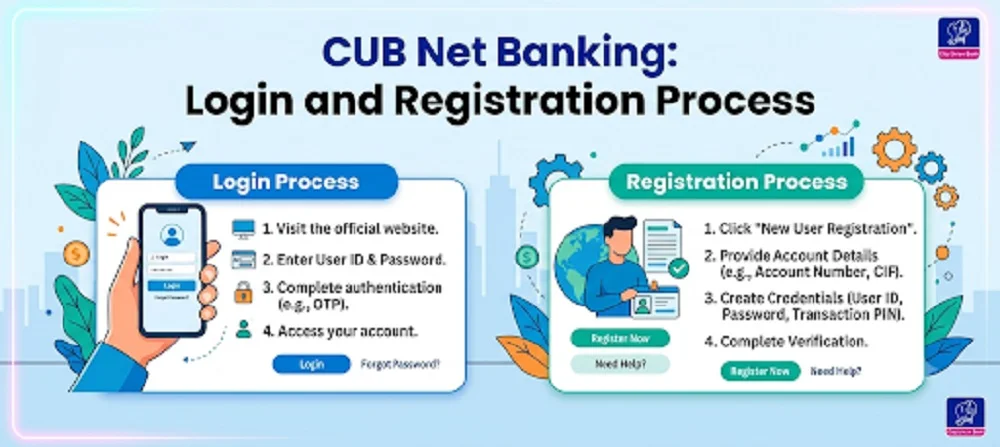
The registration process for CUB NetBanking is very simple. You can easily register using the steps below:
- Go to the CUB NetBanking official website.
- Choose the “Login” button for personal or corporate banking.
- Now, type the customer ID and press “Continue”.
- Press the “Generate online password” option.
- Now, click the “Proceed” button.
- Type your debit card number, ATM PIN, and other required details.
- Tick the checkbox.
- You will find the Request ID and OTP.
- Enter the OTP in the provided space and press “Confirm”.
- Now, set a new ID and password.
- Enable the transaction facility by pressing “Enable Transaction Facility”.
- Press “Confirm,” and the CUB netbanking registration will be complete.
CUB Net Banking Registration through Branch
If you are more comfortable with CUB netbanking registration through a branch, you can follow the steps below:
- Go to the nearest CUB branch.
- Request the netbanking form and fill it out correctly.
- Write your address, mobile number, and other necessary details.
- Submit the copies of the required documents.
- After verification, you will get the login details on the registered mobile number.
City Union Bank Net Banking Login Process
The login process for CUB net banking is simple and includes easy steps as mentioned below:
- Go to the CUB net banking official website.
- Log in to the CUB internet banking using your ID and password.
- Now, enter your mobile number.
- Enter the received OTP in the provided space.
- Your login will be successful.
How to reset CUB Net Banking Login Password?
In case you have lost or forgotten your CUB Net Banking login password, you can easily reset it using the steps below:
- Go to the CUB Netbanking portal.
- Press the “Reset password” button.
- Type the required details such as Customer ID, ATM number, and PIN.
- Choose your CUB bank branch.
- If you don’t have a credit card, press the “I don’t have a credit card” option.
- Now, enter your birth date and PAN number.
- Choose all the options on the screen: Facility required, login password, transaction passwords, and MPIN.
- You will get an OTP; enter it to continue.
- Here, you need to generate a new CUB net banking password, Transaction password, and MPIN.
- Press “Submit” and your CUB internet banking password will be successfully reset.
How to Transfer Funds Through CUB Net Banking?
If you want to transfer funds using CUB Net Banking, you can follow the process mentioned below:
- Go to the official website of CUB Net Banking.
- Log in using your ID and password.
- Press the “Fund transfer” option and choose the account you want to use for fund transfer.
- Add a beneficiary from the “Add beneficiary” option.
- Enter all the required details of the beneficiary carefully.
- Choose the mode of fund transfer – NEFT/RTGS/IMPS.
- Type the amount you need to transfer.
- Enter your TPIN.
- Your transaction will be done successfully.
Fund Transfer Fees at CUB Net Banking
When you transfer funds using CUB Net Banking, you need to pay some charges as mentioned below:
| Payment mode | Max. transaction value | Max. number of transactions per day |
| UPI CUB | Rs. 1,00,000 | 10 transactions |
| NEFT | Rs. 99,999 | No limit |
| You May Like to Read: IOB Net Banking: Login, Registration Process
Conclusion
City Union Bank net banking is a digital service provided by CUB, where customers can leverage banking services on their mobile. The process is quick and secure. CUB net banking is easy to use and saves time and effort. You can easily transfer funds, pay bills, check your balance, and many other banking activities using net banking.
CUB Net Banking – FAQs
If I forget my CUB net banking password, what should I do?
Ans. If you forgot your CUB net banking password, you can easily reset it by visiting the CB net banking official portal. You must press the “Forgot password” button and enter the required details.
What is the process to set up a new beneficiary for fund transfer?
Ans. Go to the official website of CUB NetBanking. Press the fund transfer option and then “Add New Beneficiary”. Here, you need to type all the beneficiary details.
What is the daily transfer limit using CUB NetBanking?
Ans. Yes, there are some limits applicable. It is very easy to adjust the limits in your netbanking account depending on your needs.
Is City Union Bank login secure?
Ans. Yes, CUB net banking is very secure. You must also take care to ensure security, such as not sharing your login details, using a virtual keyboard, etc.
How to activate CUB netbanking?
Ans. Go to the CUB netbanking website and choose personal or corporate banking. Then enter your customer ID and generate an online password. You also need to enter your ATM PIN and OTP.